


If you’re using Contact Form 7, you already have leads coming in. The real problem usually starts after submission. Manually exporting entries, delayed follow-ups or forms that never make it into your email system quietly cost you momentum.
This setup fixes that.
Below is the simplest way to send Contact Form 7 submissions directly into Brevo using CF7 to Any API, without writing code or relying on third-party automation tools.
Watch the Setup (2 mins)
Watch this once, then follow the steps below at your own pace.
What You’ll Need
Before you start, make sure you have:
- A Brevo account
- Contact Form 7 installed and active
- CF7 to Any API installed and active
That’s all.
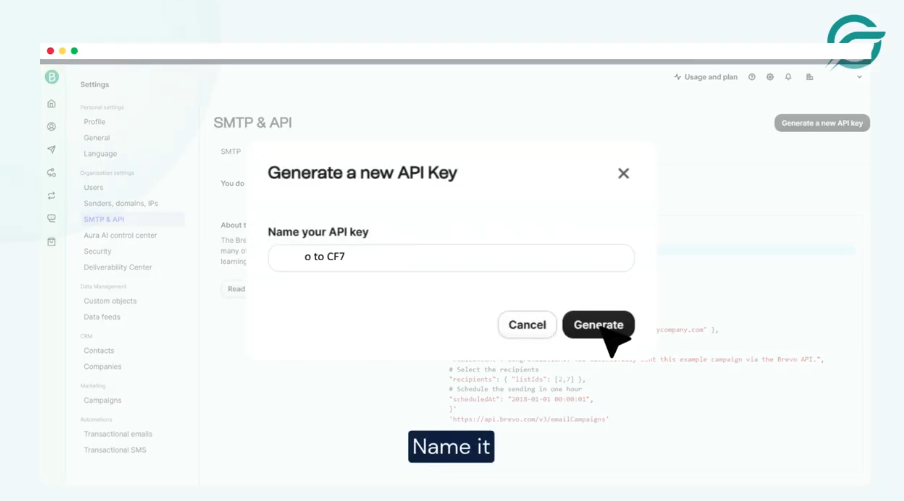
Step 1: Generate Your Brevo API Key
- Log in to your Brevo account.
- Go to: Settings → SMTP & API
- Open API Keys, then generate a new key.
- Give it a clear name so you know exactly what it’s for, for example: CF7 Integration
- Copy the API key and keep it safe. You’ll need it during the WordPress setup.
Step 2: Create a New Integration in WordPress
- Now switch to your WordPress dashboard.
- Navigate to: CF7 to Any API → Add New Integration
- Give your integration a clear, descriptive title. This helps later if you manage multiple forms or tools.
Step 3: Add Brevo Headers
Brevo requires specific headers to authenticate and accept incoming data.
- Go back to Brevo and open: Help → API Documentation
- Inside the documentation, open: Create an email campaign
- You’ll see sample header code there. This typically includes:
- API key authorization
- Content-Type set to application/json
- Copy the header code exactly as shown.
- Paste this code into the Headers field inside CF7 to Any API.
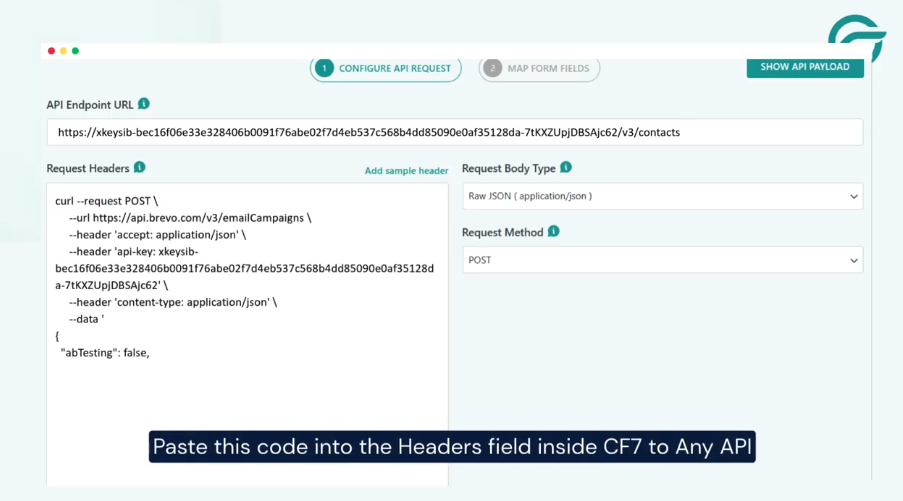
This step is critical. If the headers are wrong, Brevo will reject the request.
Step 4: Select Your Contact Form
Click Next and choose the Contact Form 7 form you want to connect to Brevo.
This defines which form submissions should be sent automatically.
Step 5: Configure the Request and Map Fields
Now map your Contact Form 7 fields to the fields Brevo expects.
Common examples include:
- Name
- Message
CF7 to Any API lets you structure this request visually, so you don’t need to work with raw JSON.
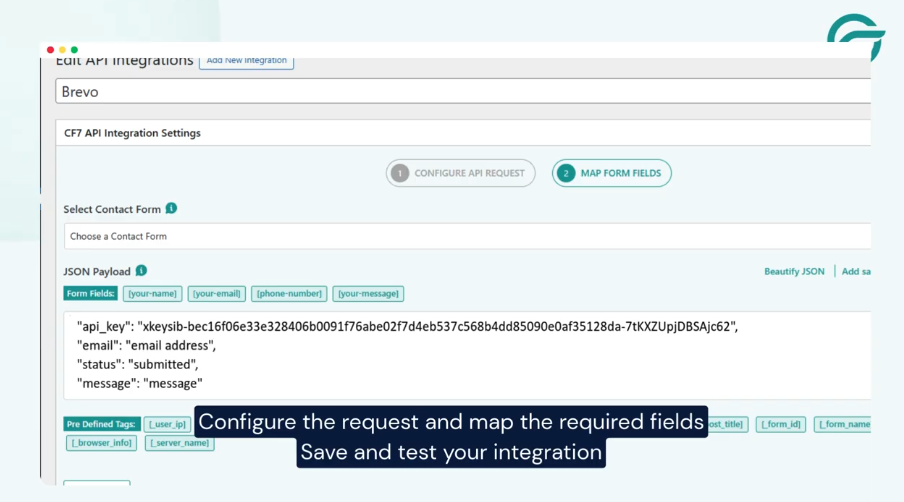
Double-check field names before saving.
Step 6: Save and Test
Save the integration, and submit a test entry through your Contact Form 7 form.
If everything is set up correctly, the submission will appear in Brevo almost instantly.
That’s it! From this point on, every Contact Form 7 submission goes straight into Brevo.
No exports. No waiting. No extra tools in the middle. Once it’s set up, the form just works in the background, the way it should.
