

Limited-time deal: Save up to 33% on CF7 to Any API | Ends soon → Get the deal now!

How to Connect Contact Form 7 with Insightly CRM in WordPress

How to Connect Contact Form 7 with Insightly CRM in WordPress (1)

Managing leads manually can slow down your sales process and increase the chances of missing valuable customer inquiries. If you’re using Contact Form 7 on your WordPress website and Insightly CRM to manage contacts, you can automate the entire workflow.

Using Contact Form to Any API, every Contact Form 7 submission can be sent directly to Insightly CRM without writing custom code. This saves time, reduces manual data entry, and ensures your CRM always contains the latest customer information.

Watch the Video Tutorial: CF7 with Insightly CRM Integration (Step-by-Step)

Before following the written steps, you can watch the complete integration setup in this quick video tutorial.

In this guide, you’ll learn how to connect Contact Form 7 with Insightly CRM in just a few simple steps.

Step 1: Sign in to Your Insightly CRM Account

Log in to your Insightly CRM account using your administrator credentials.

You’ll need access to your API settings to obtain the endpoint URL and API key required for the integration.

Step 2: Open Your WordPress Dashboard

Log in to your WordPress admin area.

This is where you’ll configure the Contact Form to Any API integration.

Step 3: Create a New API Integration
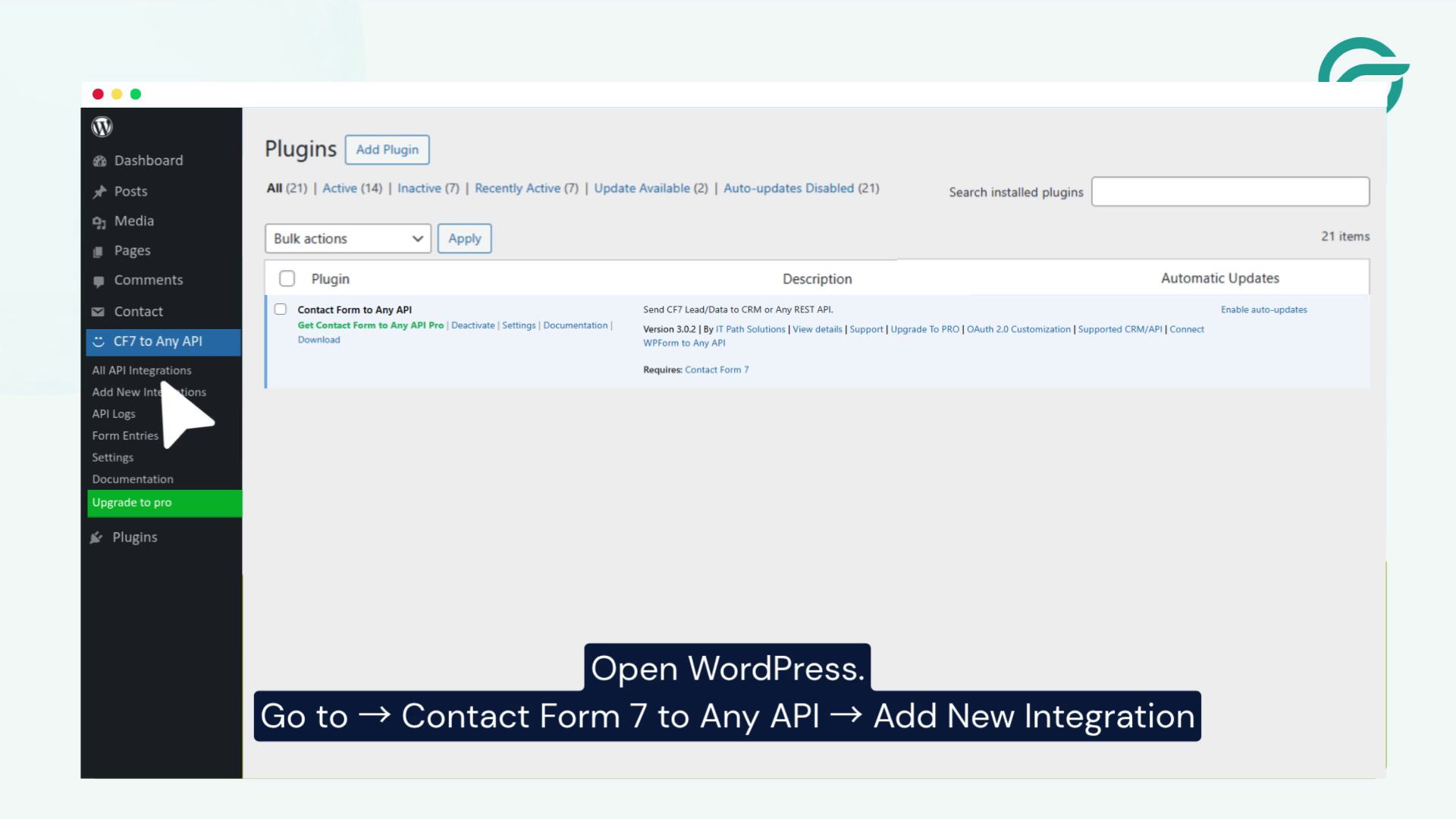
Go to - Contact Form to Any API - Add New Integration

From the WordPress dashboard, navigate to:

Contact Form to Any API → Add New Integration

This opens the integration setup page where you’ll configure the API request.

Step 4: Enter an Integration Name

Give your integration a descriptive title so it’s easy to identify later.
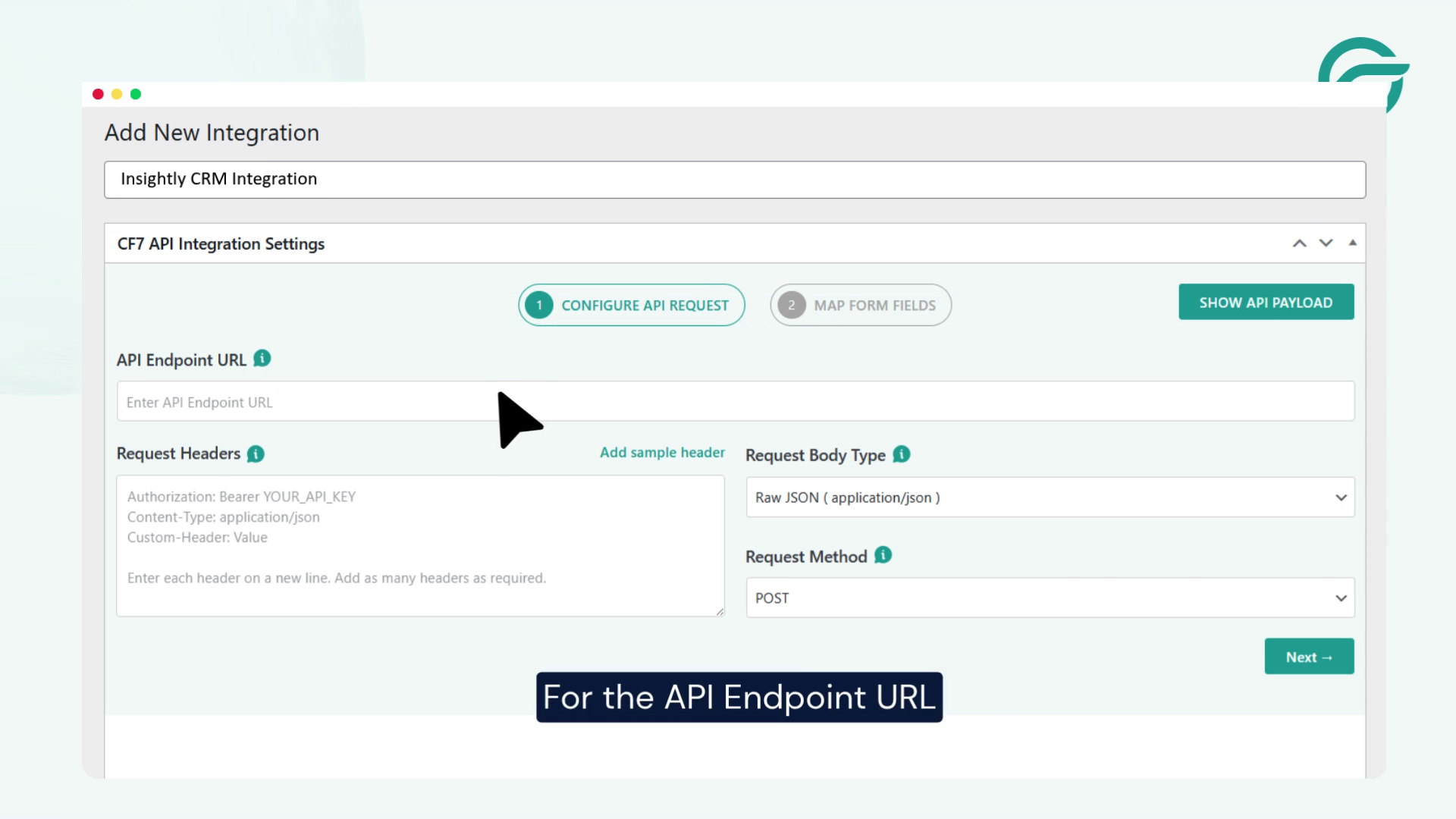
Add new integration title Example Insightly CRM Integration

For example:

Insightly CRM Integration

You can use any name that helps distinguish this integration from others.

Step 5: Copy the Insightly API Endpoint
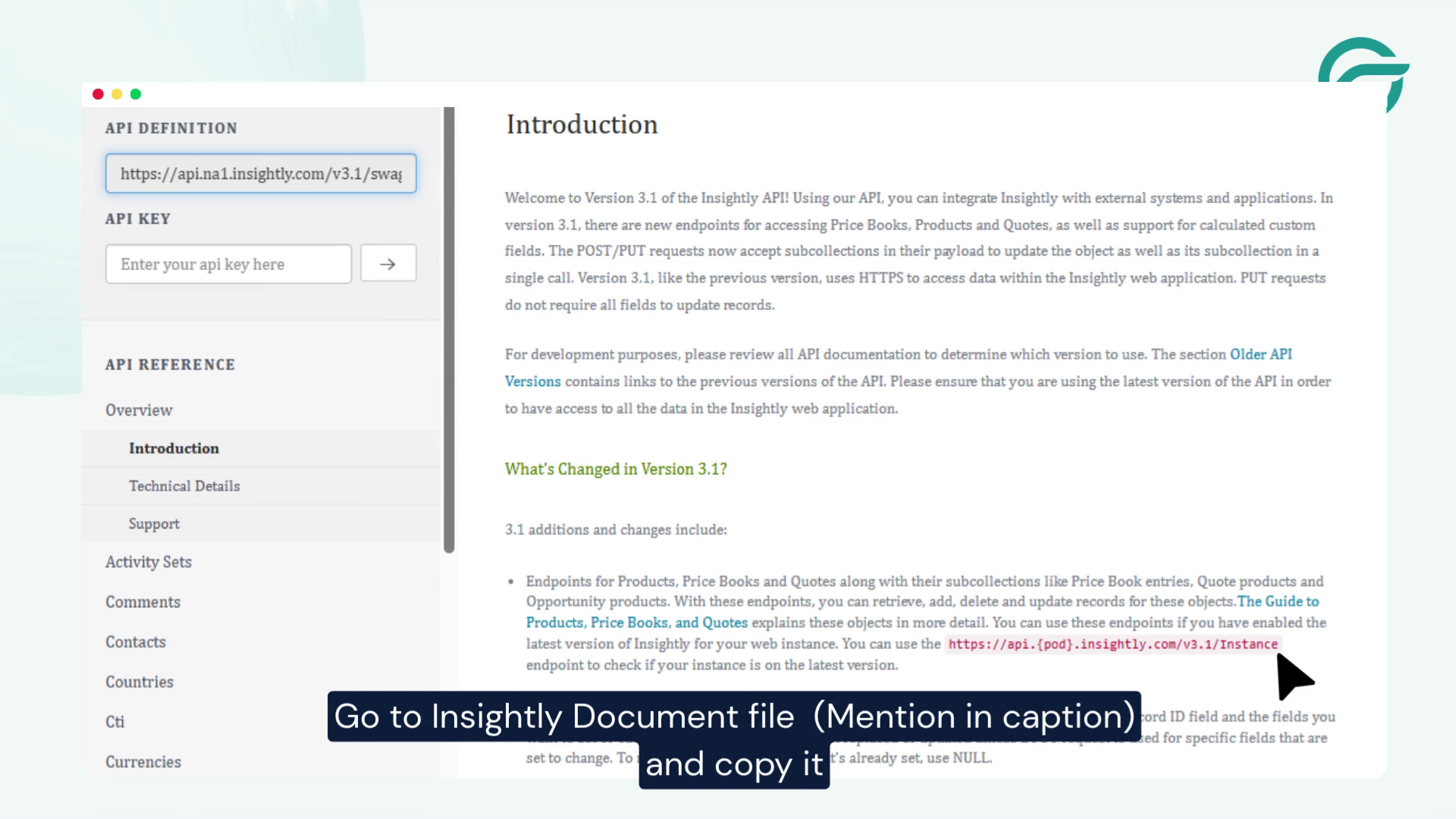
Go to Insightly CRM Dashboard, Writing to the API, Copy the Endpoint

In your Insightly account, navigate to the API documentation or API reference section.

Locate the Contacts API endpoint and copy the endpoint URL.

For most accounts, it looks like:

https://api.na1.insightly.com/v3.1/Contacts

This endpoint tells the plugin where to send Contact Form 7 submissions.

Step 6: Paste the API Endpoint into WordPress
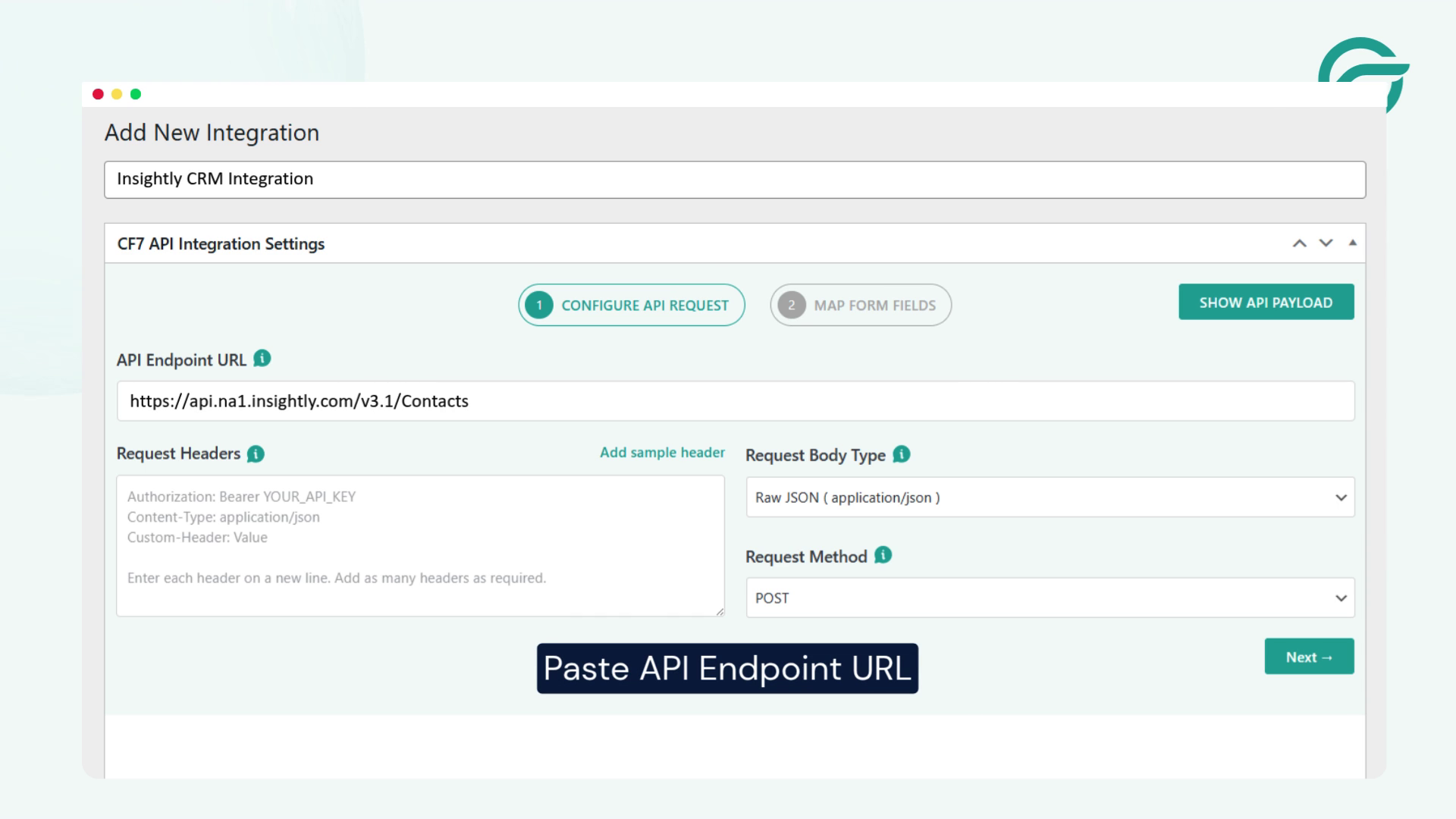
Go back to WordPress, API Endpoint URL

Return to your WordPress integration page.

Paste the copied endpoint into the API Endpoint URL field.

This connects your Contact Form 7 integration to the Insightly Contacts API.

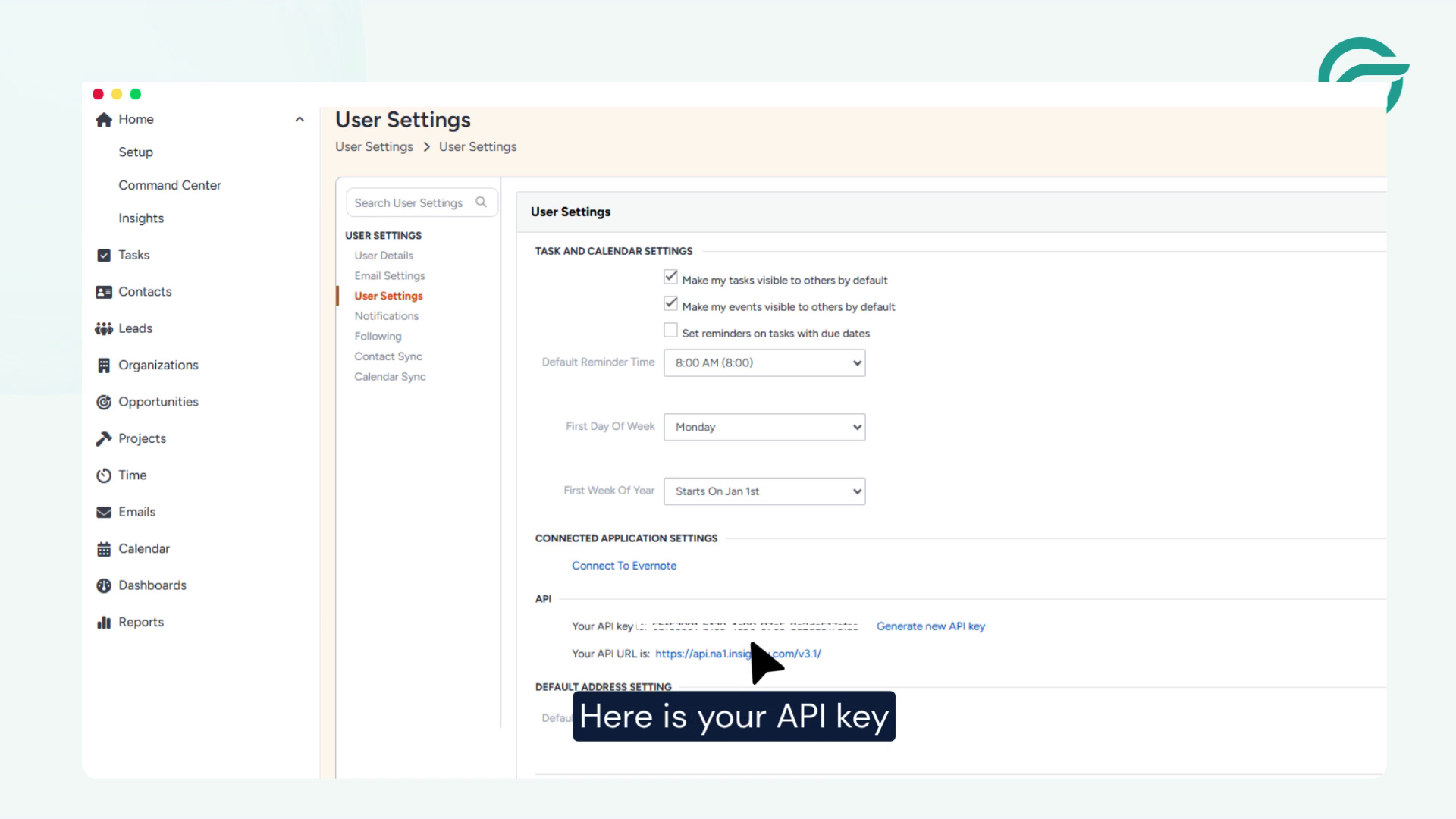
Step 7: Get Your Insightly API Key

Inside your Insightly account:
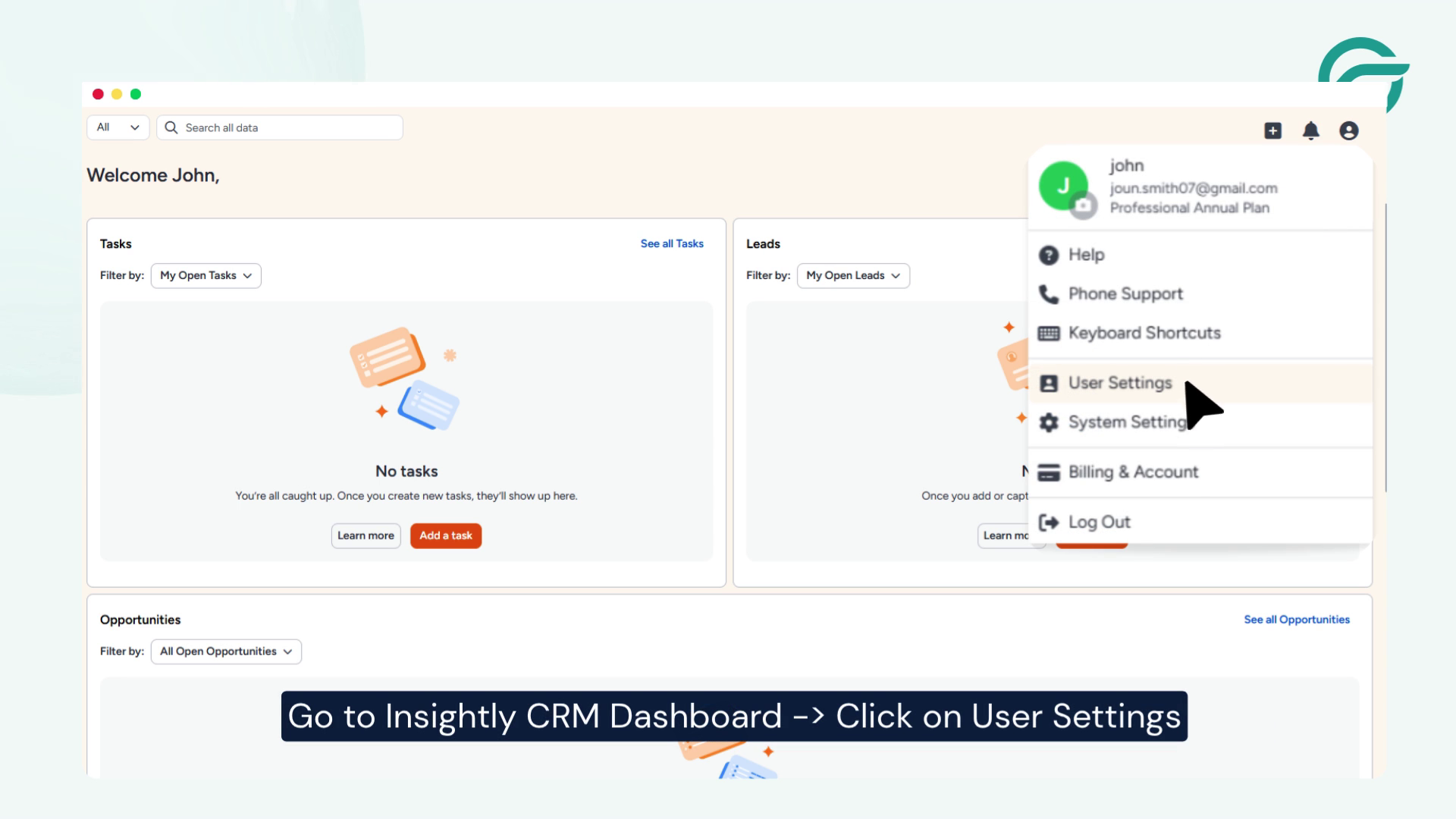
Go to your Insightly Document, Click on User Setting

Go to your Insightly Document, Click on User Setting,Copy API Key

  • Open your user profile or account settings.
  • Locate your API Key.
  • Copy the API key.

This key authenticates requests sent from your website.

Step 8: Configure the Request Headers
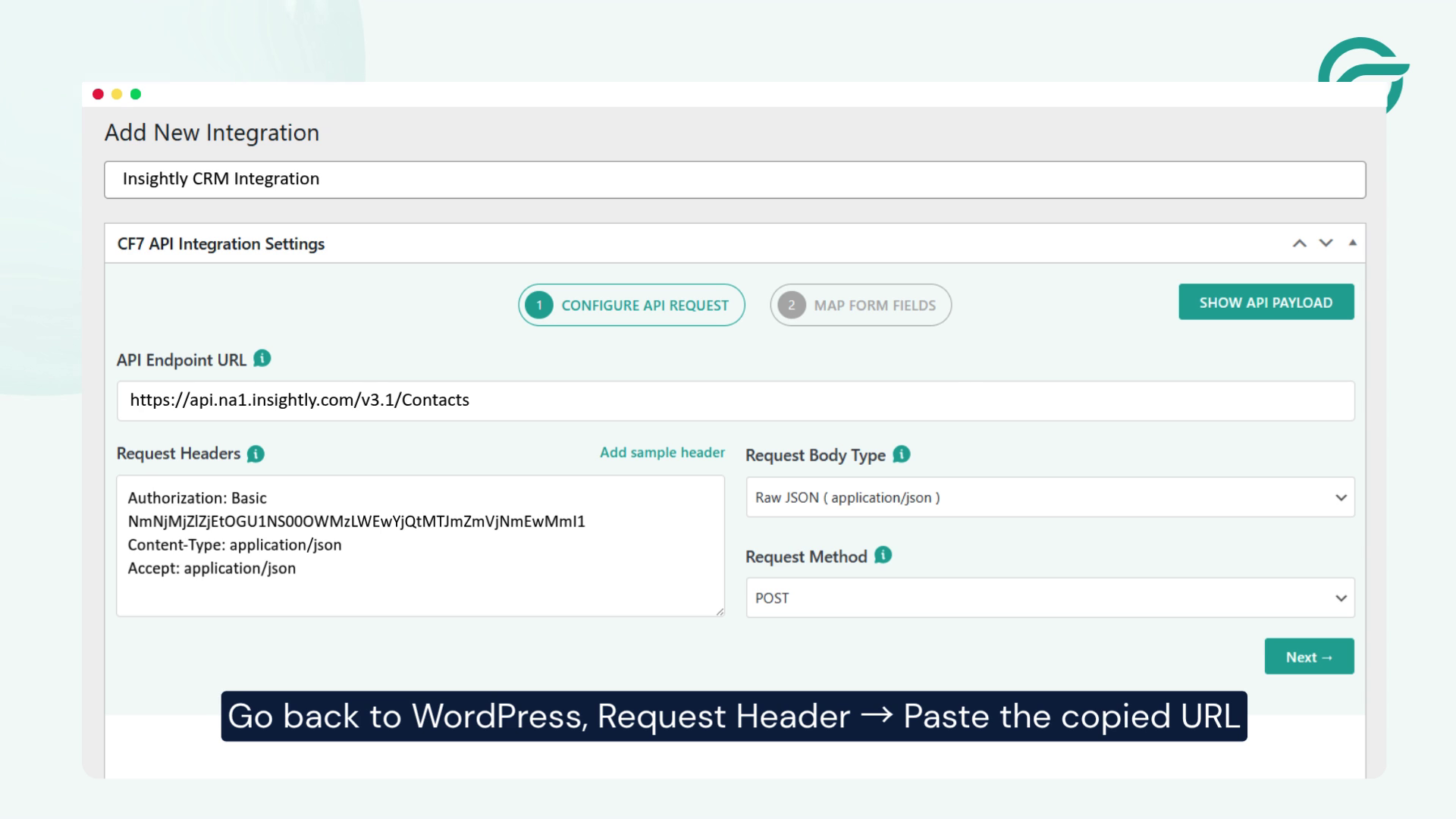
Go to Contact Form to Any API. Paste the copied key in the Request Headers field

Go to Contact Form to Any API -> Paste the copied key in the “Request Headers” field

In the Request Headers section, add the authentication header using your Insightly API key.

Depending on your API configuration, your request headers may look similar to:

Authorization: Basic YOUR_API_KEY

Content-Type: application/json

Step 9: Continue to the Next Step

After completing the endpoint and request header configuration, click the Next button to continue.

Step 10: Select Contact Form 7
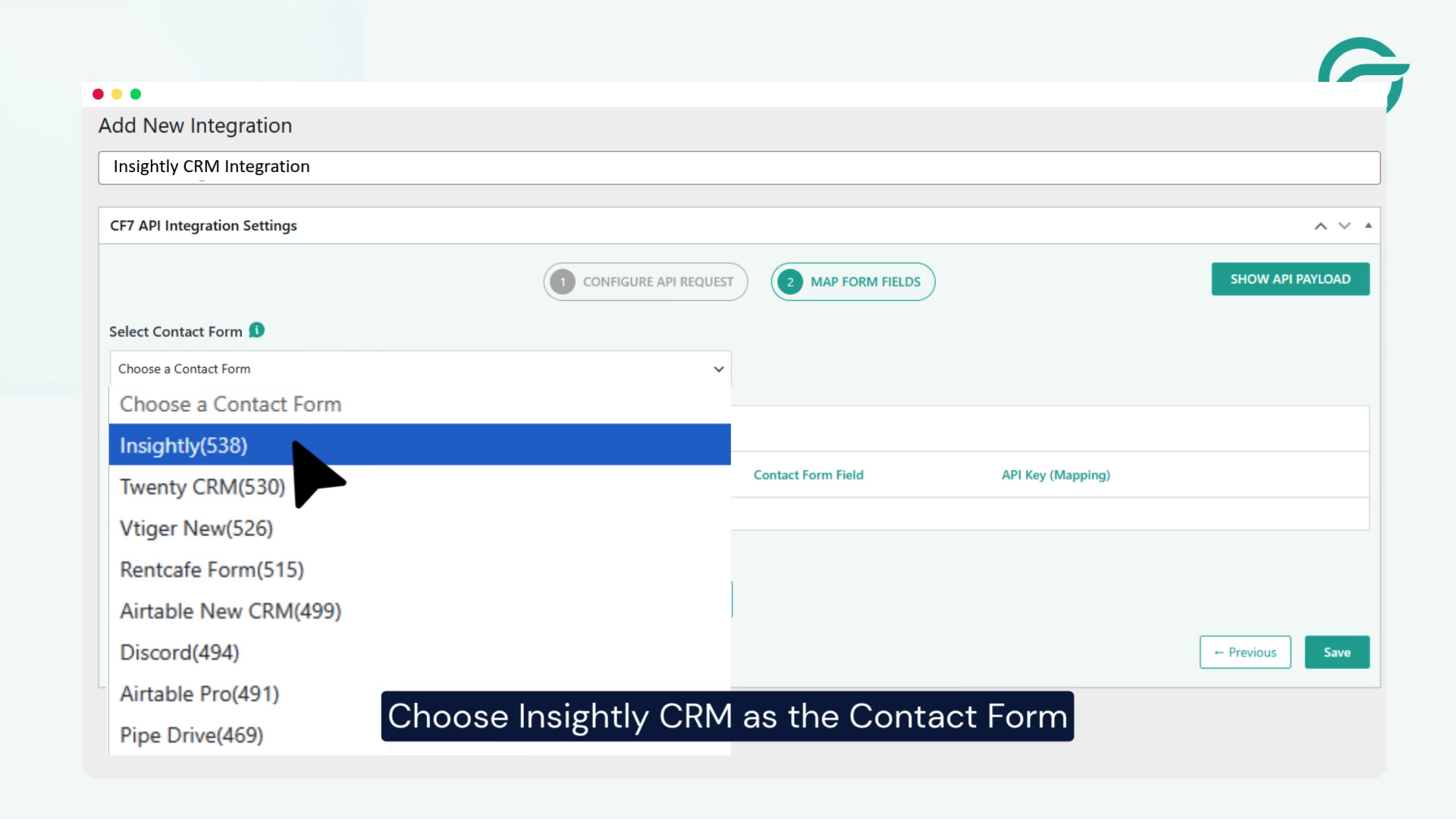
Choose Insightly CRM as the Contact Form

Choose Insightly CRM as the Contact Form.

This determines which form submissions will be sent to your CRM.

Step 11: Map Contact Form Fields to Insightly Fields
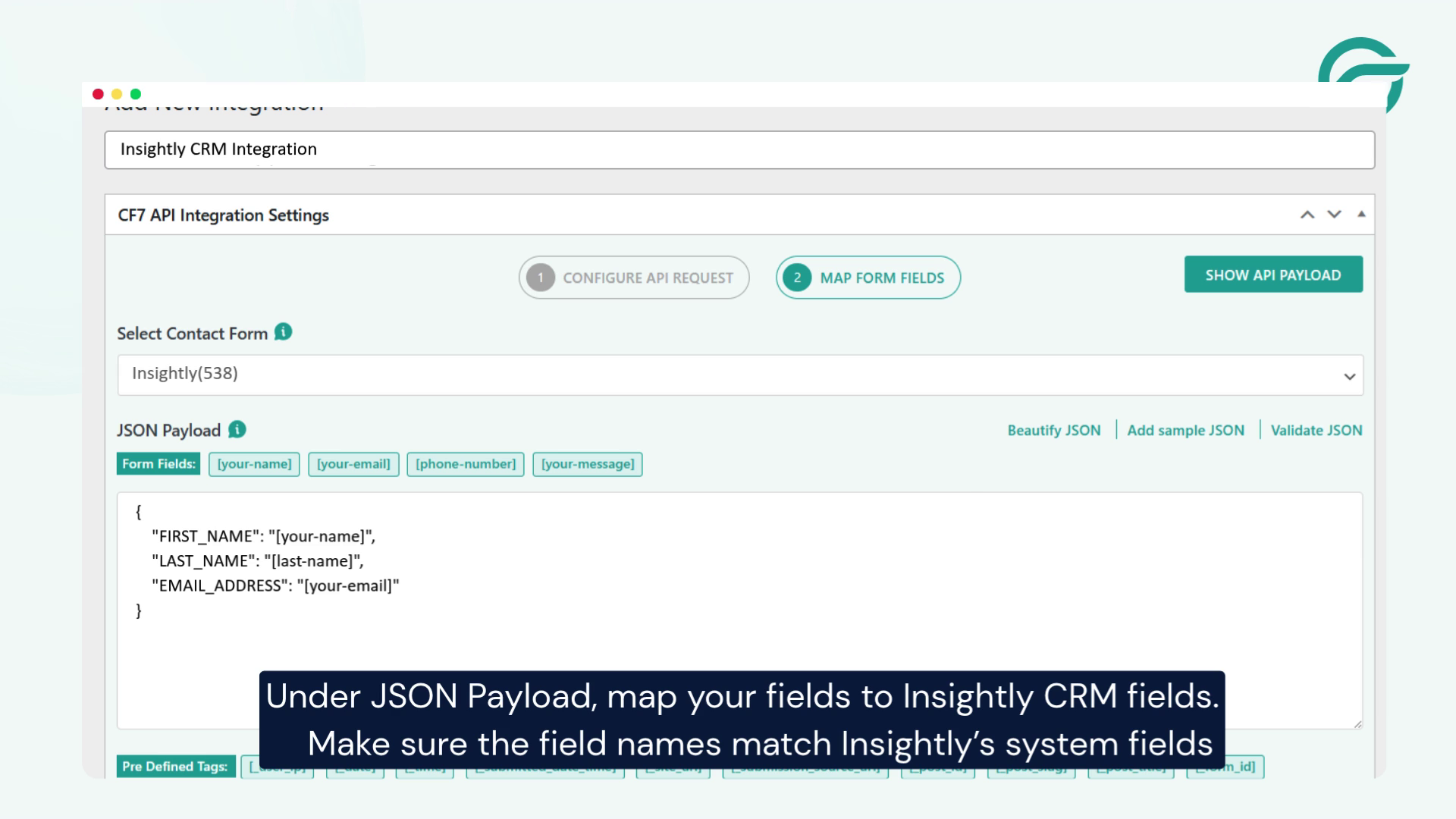
Map Contact Form Fields to Insightly Fields

Under the JSON Payload section, map your Contact Form 7 fields to the corresponding Insightly contact fields.

For example:

{

  “FIRST_NAME”: “[your-name]”,

  “LAST_NAME”: “[last-name]”,

  “EMAIL_ADDRESS”: “[your-email]”,

  “PHONE”: “[your-phone]”,

  “ORGANISATION_NAME”: “[company]”,

  “BACKGROUND”: “[your-message]”

}

Ensure the field names match the field names expected by the Insightly Contacts API.

You can also map custom fields if you’ve created them in your Insightly account.

Step 12: Test the Integration
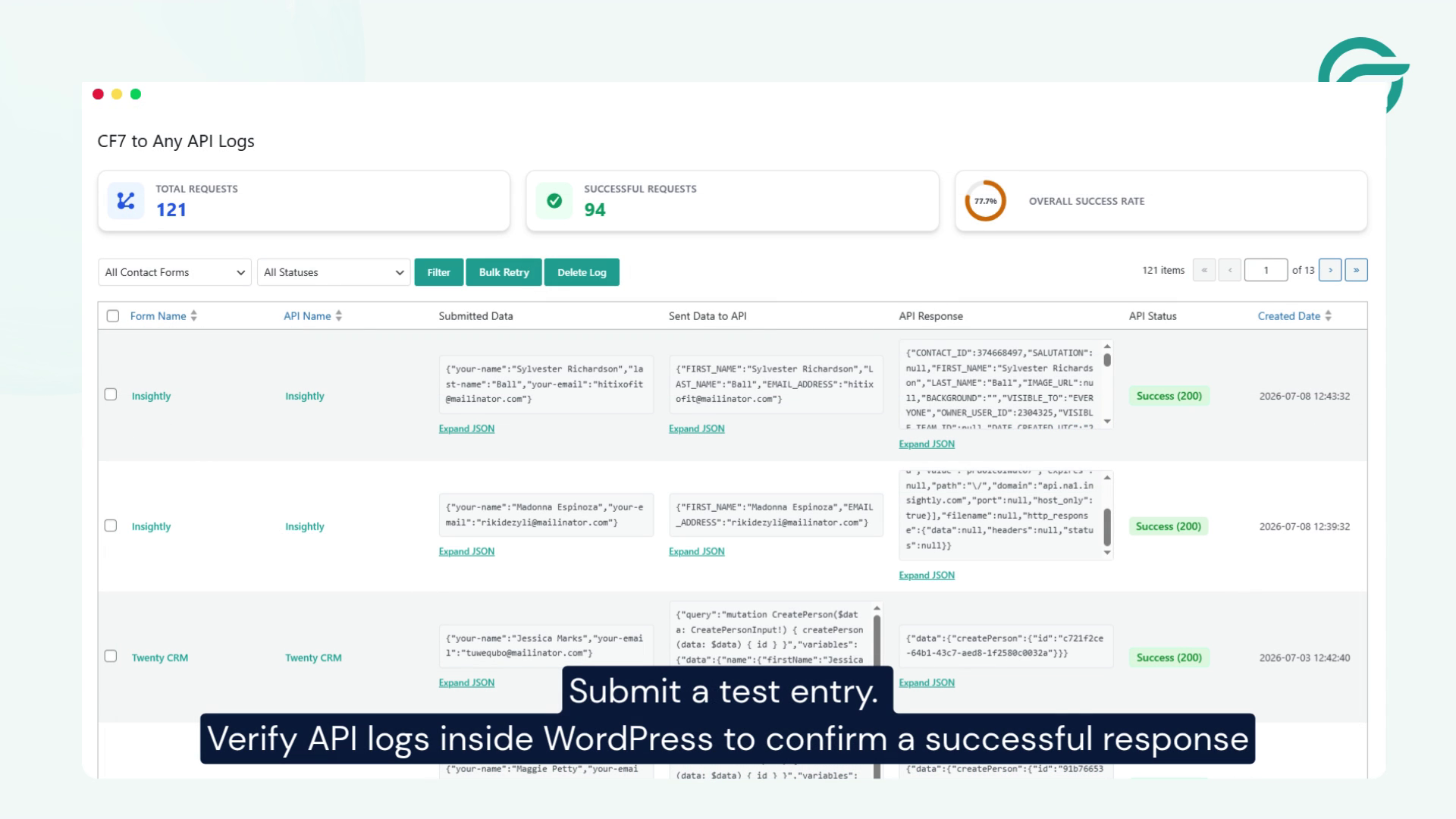
submit test entry

Submit a test entry through your Contact Form 7 form.

After submission:

  • Open Contact Form to Any API → API Logs
  • Confirm the request was sent successfully.
  • Verify that a new contact has been created inside Insightly CRM.

Conclusion

Integrating Contact Form 7 with Insightly CRM using Contact Form to Any API is an easy way to automate lead collection and streamline your customer management process.

Once configured, every form submission is automatically sent to Insightly, allowing your sales team to respond faster while keeping your CRM accurate and up to date. Whether you’re capturing inquiries, support requests, or business leads, this integration helps eliminate repetitive manual work and improves overall efficiency.

Frequently Asked Questions

1. Why should I connect Contact Form 7 with Insightly CRM?

Connecting Contact Form 7 with Insightly CRM automatically sends website enquiries into your CRM, eliminating manual data entry. This helps businesses capture every lead, respond faster, maintain accurate customer records, and improve the overall sales process.

2. What are the benefits of integrating Contact Form 7 with Insightly CRM?

Integrating Contact Form 7 with Insightly CRM helps automate lead capture, reduce manual work, improve data accuracy, centralize customer information, speed up sales follow-ups, and keep your CRM updated with every new enquiry submitted through your website.

3. What information can be transferred from Contact Form 7 to Insightly CRM?

You can transfer both standard and custom form fields, including names, email addresses, phone numbers, company details, enquiry messages, lead sources, and other custom information. Field mapping ensures the data is stored in the appropriate Insightly CRM fields.

4. Which businesses benefit most from this integration?

This integration is ideal for marketing agencies, consultants, SaaS companies, IT service providers, professional services firms, real estate businesses, educational institutions, and any organization that captures leads through WordPress and manages customer relationships in Insightly CRM.

5. What are some real-world use cases for Contact Form 7 and Insightly CRM integration?

Businesses commonly use this integration to automate sales enquiries, consultation requests, demo bookings, service requests, event registrations, franchise enquiries, partner applications, and customer support forms. Every submission is automatically stored in Insightly CRM for faster follow-up.

6. How does CRM automation improve lead management?

CRM automation automatically records new enquiries, organizes customer information, and makes leads immediately available to your sales team. This reduces administrative work, minimizes errors, improves response times, and ensures no potential customer is overlooked.

7. What is the difference between Contact Form 7 and Contact Form to Any API?

Contact Form 7 is a WordPress plugin used to create contact forms and collect visitor information. Contact Form to Any API extends Contact Form 7 by sending form submissions directly to third-party applications like Insightly CRM through APIs, enabling automated workflows without custom development.

8. Why use an API integration instead of manually importing leads?

A direct API integration transfers Contact Form 7 submissions to Insightly CRM in real time. This eliminates repetitive manual imports, reduces the risk of human error, prevents lost leads, and ensures customer records are always up to date.

9. Can this integration improve sales productivity?

Yes. Automating the transfer of website enquiries into Insightly CRM allows sales teams to spend less time entering data and more time nurturing leads. Faster follow-ups and organized customer information can help improve sales efficiency and conversion rates.

10. Is Contact Form 7 and Insightly CRM integration suitable for growing businesses?

Yes. As your business grows and receives more enquiries, manually managing leads becomes increasingly difficult. Integrating Contact Form 7 with Insightly CRM automates lead capture, scales with your business, and helps maintain an efficient sales process without increasing administrative workload.

This FAQ set is stronger because it emphasizes business value, automation, lead management, and real-world applications rather than repeating the implementation steps covered in the tutorial.

×

    { "@context": "https://schema.org", "@type": "FAQPage", "mainEntity": [ { "@type": "Question", "name": "Why should I connect Contact Form 7 with Insightly CRM?", "acceptedAnswer": { "@type": "Answer", "text": "Connecting Contact Form 7 with Insightly CRM automatically sends website enquiries into your CRM, eliminating manual data entry. This helps businesses capture every lead, respond faster, maintain accurate customer records, and improve the overall sales process." } }, { "@type": "Question", "name": "What are the benefits of integrating Contact Form 7 with Insightly CRM?", "acceptedAnswer": { "@type": "Answer", "text": "Integrating Contact Form 7 with Insightly CRM helps automate lead capture, reduce manual work, improve data accuracy, centralize customer information, speed up sales follow-ups, and keep your CRM updated with every new enquiry submitted through your website." } }, { "@type": "Question", "name": "What information can be transferred from Contact Form 7 to Insightly CRM?", "acceptedAnswer": { "@type": "Answer", "text": "You can transfer both standard and custom form fields, including names, email addresses, phone numbers, company details, enquiry messages, lead sources, and other custom information. Field mapping ensures the data is stored in the appropriate Insightly CRM fields." } }, { "@type": "Question", "name": "Which businesses benefit most from this integration?", "acceptedAnswer": { "@type": "Answer", "text": "This integration is ideal for marketing agencies, consultants, SaaS companies, IT service providers, professional services firms, real estate businesses, educational institutions, and any organization that captures leads through WordPress and manages customer relationships in Insightly CRM." } }, { "@type": "Question", "name": "What are some real-world use cases for Contact Form 7 and Insightly CRM integration?", "acceptedAnswer": { "@type": "Answer", "text": "Businesses commonly use this integration to automate sales enquiries, consultation requests, demo bookings, service requests, event registrations, franchise enquiries, partner applications, and customer support forms. Every submission is automatically stored in Insightly CRM for faster follow-up." } }, { "@type": "Question", "name": "How does CRM automation improve lead management?", "acceptedAnswer": { "@type": "Answer", "text": "CRM automation automatically records new enquiries, organizes customer information, and makes leads immediately available to your sales team. This reduces administrative work, minimizes errors, improves response times, and ensures no potential customer is overlooked." } }, { "@type": "Question", "name": "What is the difference between Contact Form 7 and Contact Form to Any API?", "acceptedAnswer": { "@type": "Answer", "text": "Contact Form 7 is a WordPress plugin used to create contact forms and collect visitor information. Contact Form to Any API extends Contact Form 7 by sending form submissions directly to third-party applications like Insightly CRM through APIs, enabling automated workflows without custom development." } }, { "@type": "Question", "name": "Why use an API integration instead of manually importing leads?", "acceptedAnswer": { "@type": "Answer", "text": "A direct API integration transfers Contact Form 7 submissions to Insightly CRM in real time. This eliminates repetitive manual imports, reduces the risk of human error, prevents lost leads, and ensures customer records are always up to date." } }, { "@type": "Question", "name": "Can this integration improve sales productivity?", "acceptedAnswer": { "@type": "Answer", "text": "Yes. Automating the transfer of website enquiries into Insightly CRM allows sales teams to spend less time entering data and more time nurturing leads. Faster follow-ups and organized customer information can help improve sales efficiency and conversion rates." } }, { "@type": "Question", "name": "Is Contact Form 7 and Insightly CRM integration suitable for growing businesses?", "acceptedAnswer": { "@type": "Answer", "text": "Yes. As your business grows and receives more enquiries, manually managing leads becomes increasingly difficult. Integrating Contact Form 7 with Insightly CRM automates lead capture, scales with your business, and helps maintain an efficient sales process without increasing administrative workload." } } ] } whatsapp
    Star Star Star
    popup-offer

    SAVE UP TO 33%
    IF YOU ACT NOW.

    00H
    00M
    00S
    Unlock discounted price →

    No thanks, I’ll pay full price.

    Instant access. 14-day refund on first purchase.